Emergency Invoice Generator: Create, Download, and Go (2025 Guide)
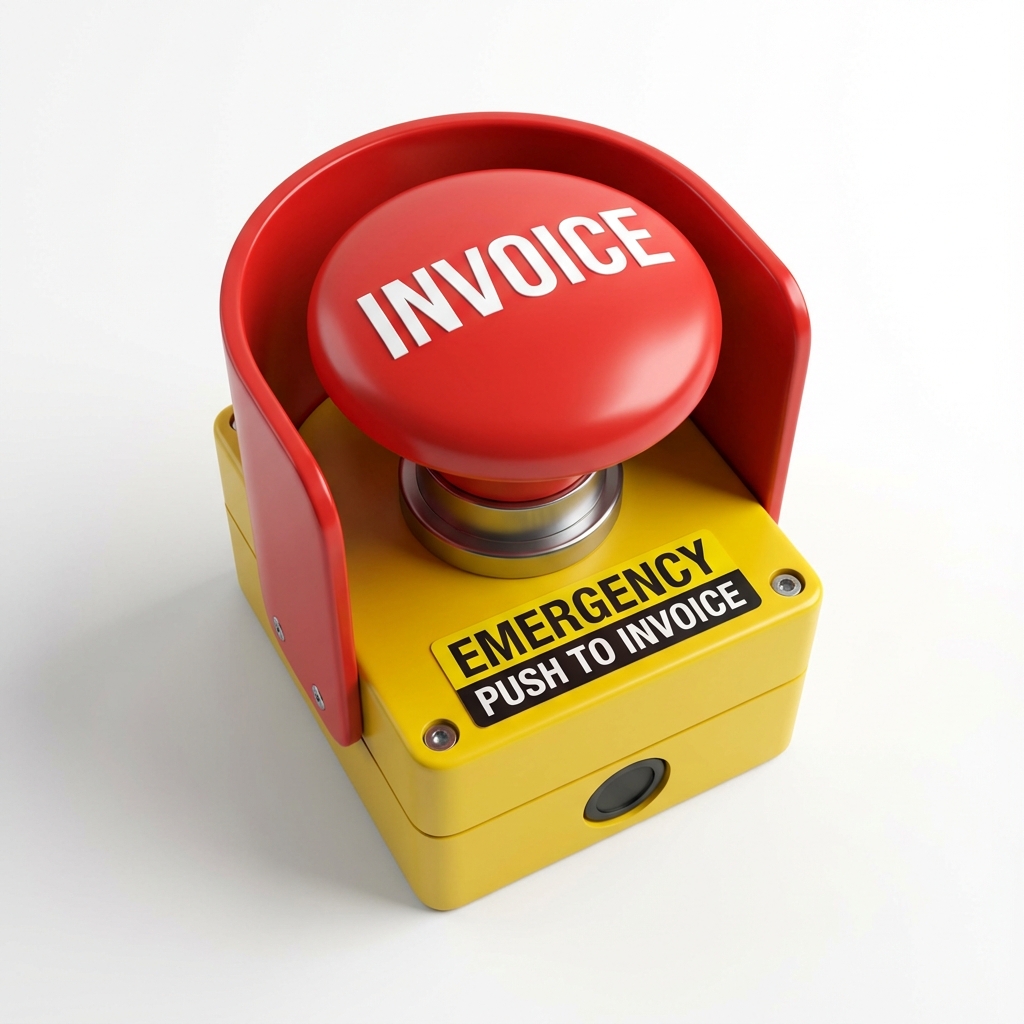
AI Image Prompt: Red emergency button with the word INVOICE on it, 3D render, clean white background, symbolizing urgent financial action
Panic mode. We've all been there. Maybe your regular accounting software is down for maintenance. Maybe you're at a client's office and they say, "If you can get me an invoice in the next 10 minutes, I can include it in today's payment run." Maybe you completely forgot a deadline. Whatever the reason, you need an emergency invoice generator.
You don't have time to sign up. You don't have time to configure settings. You don't have time to design a template. You need a quick bill maker that strips away everything non-essential and leaves you with one thing: a valid, professional PDF invoice, right now.
This guide introduces the concept of "Emergency Invoicing." We'll show you how to use ultra-simple tools to save the day, what information you absolutely cannot skip even in a rush, and how to keep your cool when the clock is ticking.
What is "Emergency Invoicing"?
Emergency invoicing is the act of creating a billing document under extreme time pressure or technical constraints. It prioritizes speed and function over aesthetics and long-term data storage.
The "3-Click" Rule
A true emergency tool follows the 3-click rule:
- Click 1: Open the tool (no login).
- Click 2: Enter the Total Amount (auto-fill the rest).
- Click 3: Download PDF.
If a tool asks you to "verify your email address," it is not an emergency tool. It is a hindrance.
The "Bare Minimum" Valid Invoice
When you are rushing, you might be tempted to skip fields. Don't. An invalid invoice will be rejected, defeating the purpose of rushing. Here is the absolute bare minimum a simple invoice generator must include to be legally valid:
- The Word "INVOICE": It must be clearly labeled at the top.
- Identity: Who are you? (Business Name). Who are they? (Client Name).
- Date: Today's date.
- Description: What is this for? (e.g., "Emergency Repair Services").
- Amount: The total due.
Everything else—logos, thank you notes, social media links—is luxury. In an emergency, skip the luxury.
AI Image Prompt: Wireframe diagram highlighting only the 5 legally required fields on an invoice, graying out non-essential elements, clean and instructional style
Top Tools for the "I Need It Now" Moment
When disaster strikes, you need to know where to go. Bookmark these types of tools:
1. The Browser-Based "Guest" Generator
Tools like Invoicely allow guest access. They are perfect because they are robust but don't require login. They render the PDF in your browser, so they are fast even on slow connections.
2. The "Urgent Invoice Template" (PDF/Word)
Having a blank urgent invoice template saved on your Google Drive or Dropbox is a great backup. You can open it on your phone, edit the text, and export. It's not as automated as a generator, but it works offline.
Scenario: The 5-Minute Warning
Let's walk through a real-life emergency scenario to see how a quick bill maker saves the day.
The Situation: You are a freelance videographer. You just finished a shoot. The producer says, "Hey, accounts payable is closing the monthly budget in 10 minutes. Send me the invoice NOW and I'll get you paid tomorrow. Otherwise, you wait 30 days."
The Action Plan:
- Minute 1: Pull out your phone. Open Invoicely (bookmarked).
- Minute 2: Type "Video Services" and "$1,500". The tool auto-calculates.
- Minute 3: Enter "Producer Name" in the Client field.
- Minute 4: Download PDF. Open email app. Attach PDF.
- Minute 5: Send with subject "URGENT: Invoice for Video Services".
The Result: You get paid in 24 hours instead of 30 days. That is the value of emergency invoicing.
Don't Let Panic Cause Errors
Rushing leads to mistakes. Even in an emergency, take 10 seconds to breathe and check these common "panic errors":
1. The "Zero" Error
Typing $100 instead of $1000. Or $10000 instead of $1000. Always count the zeros.
2. The "Wrong Client" Error
If you use autofill, make sure you didn't accidentally bill "Client A" for "Client B's" work. That is a privacy breach and a professional embarrassment.
3. The "Draft" Error
Some tools put a "DRAFT" watermark on the preview. Make sure you hit the actual "Download Final" button, not just screenshot the preview.
Conclusion: Be Prepared for the Rush
An emergency invoice generator is like a spare tire. You hope you don't need it, but when you do, it's the most important tool you own. It keeps your business moving when the road gets bumpy.
Don't wait for the emergency to find your tool. Find a simple, fast, no-signup generator today, bookmark it, and rest easy knowing you can bill in seconds, no matter what happens.